

What is Sanity?
Sanity is our content management system that allows you to easily edit website content without touching any code.

Welcome to the Sanity CMS Content Editing Guide! This document provides a comprehensive walkthrough for the creative and content-writing teams on how to use Sanity CMS to edit and update the Founders Club website content.
What is Sanity?
Sanity is our content management system that allows you to easily edit website content without touching any code.
Who can use it?
Creative team members, content writers, and anyone with proper access credentials.
What can you edit?
Text, images, testimonials, FAQs, events, team information, and much more!
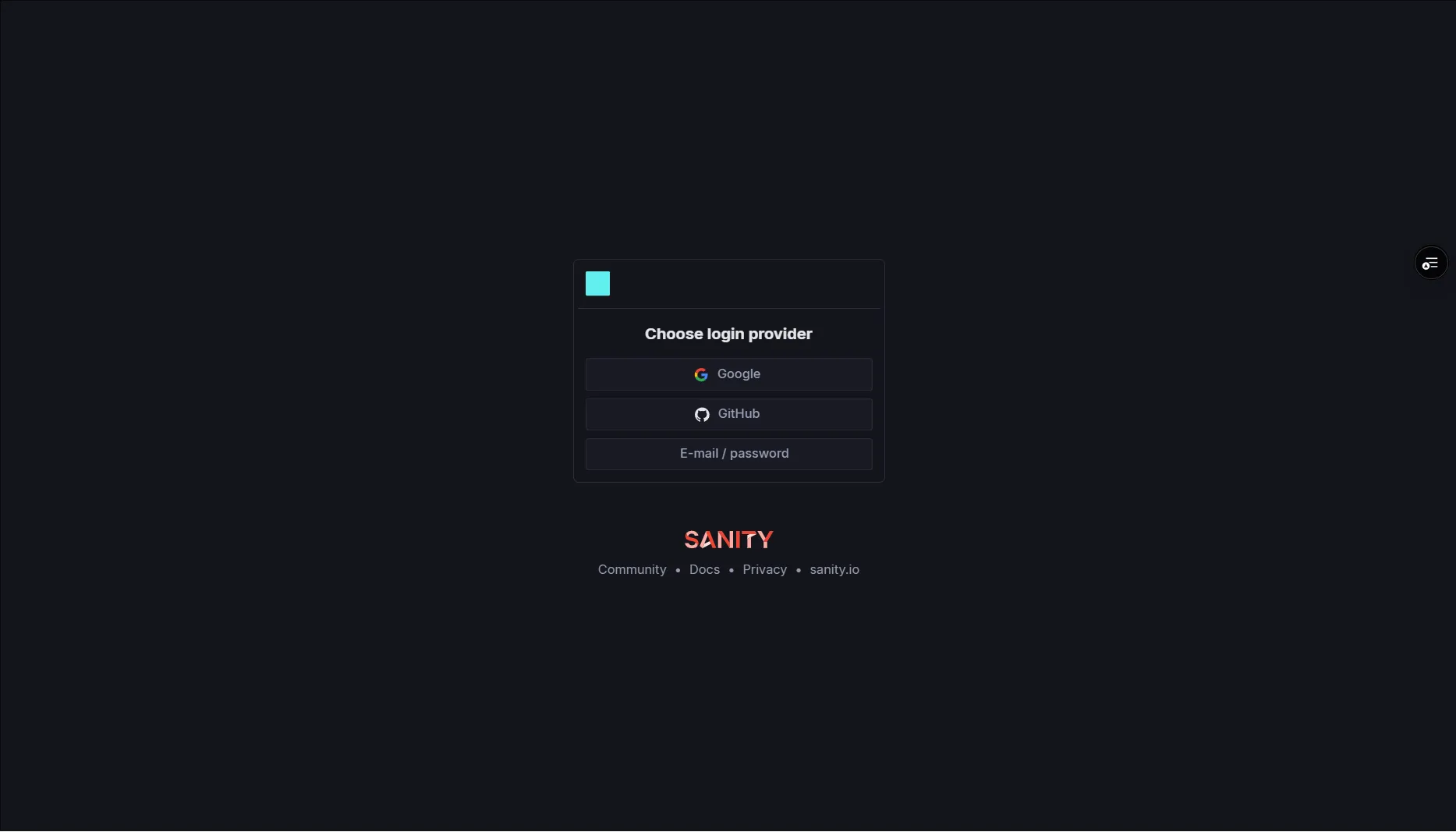
Step 1: Get Credentials
Contact Tech Lead to receive your invitation to Sanity Studio
Step 2: Access Studio
Navigate to www.thefoundersclub.in/studio in your web browser
Step 3: Log In
Use your provided credentials to log in to the studio
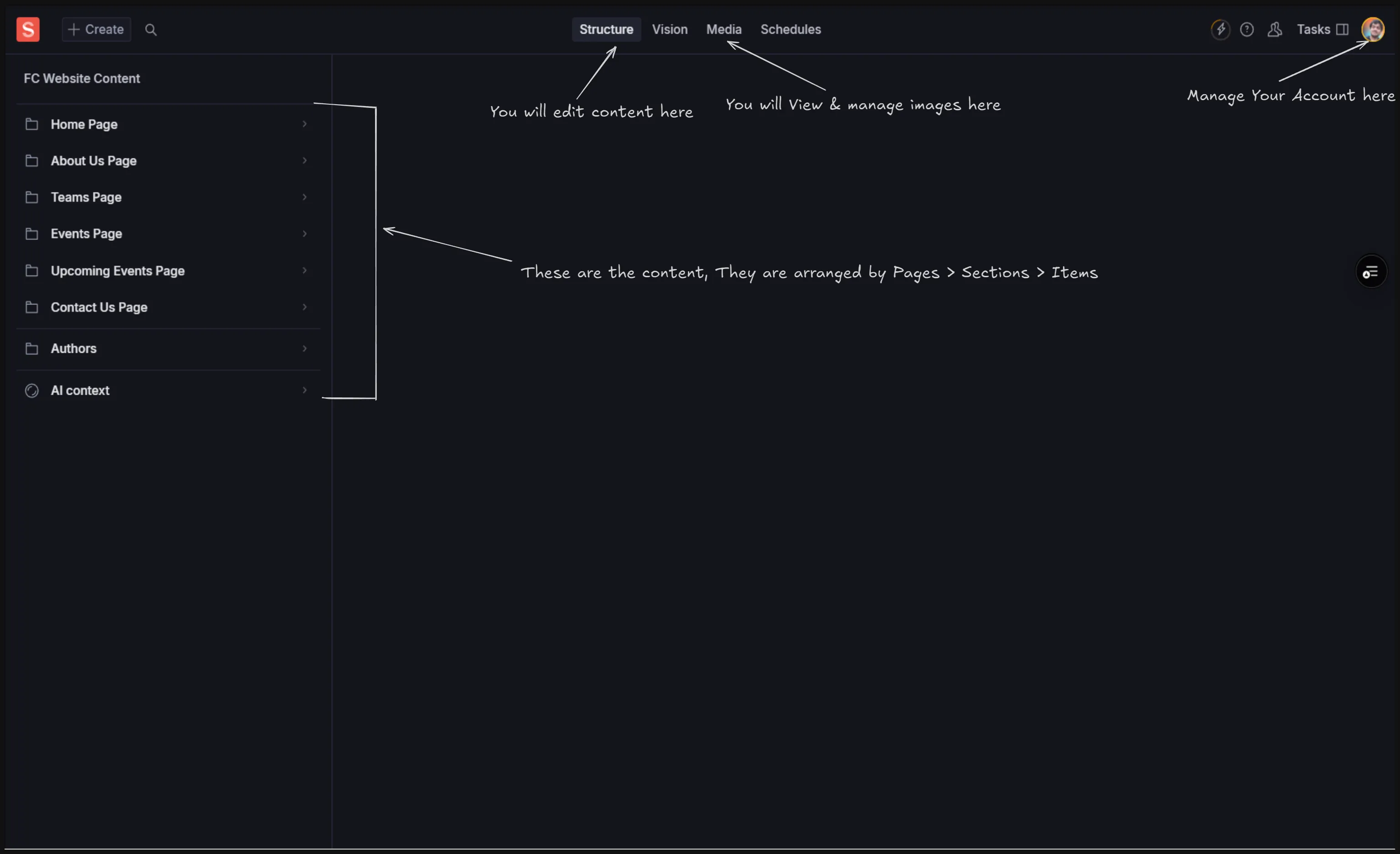
Dashboard
The initial screen showing recent activity and project overviews
Views
Define the structure of different pages (Home, About Us, Events, etc.)
Page Content
Define the structure of different components within each page
Documents
Individual components that you can edit (Hero sections, testimonials, etc.)
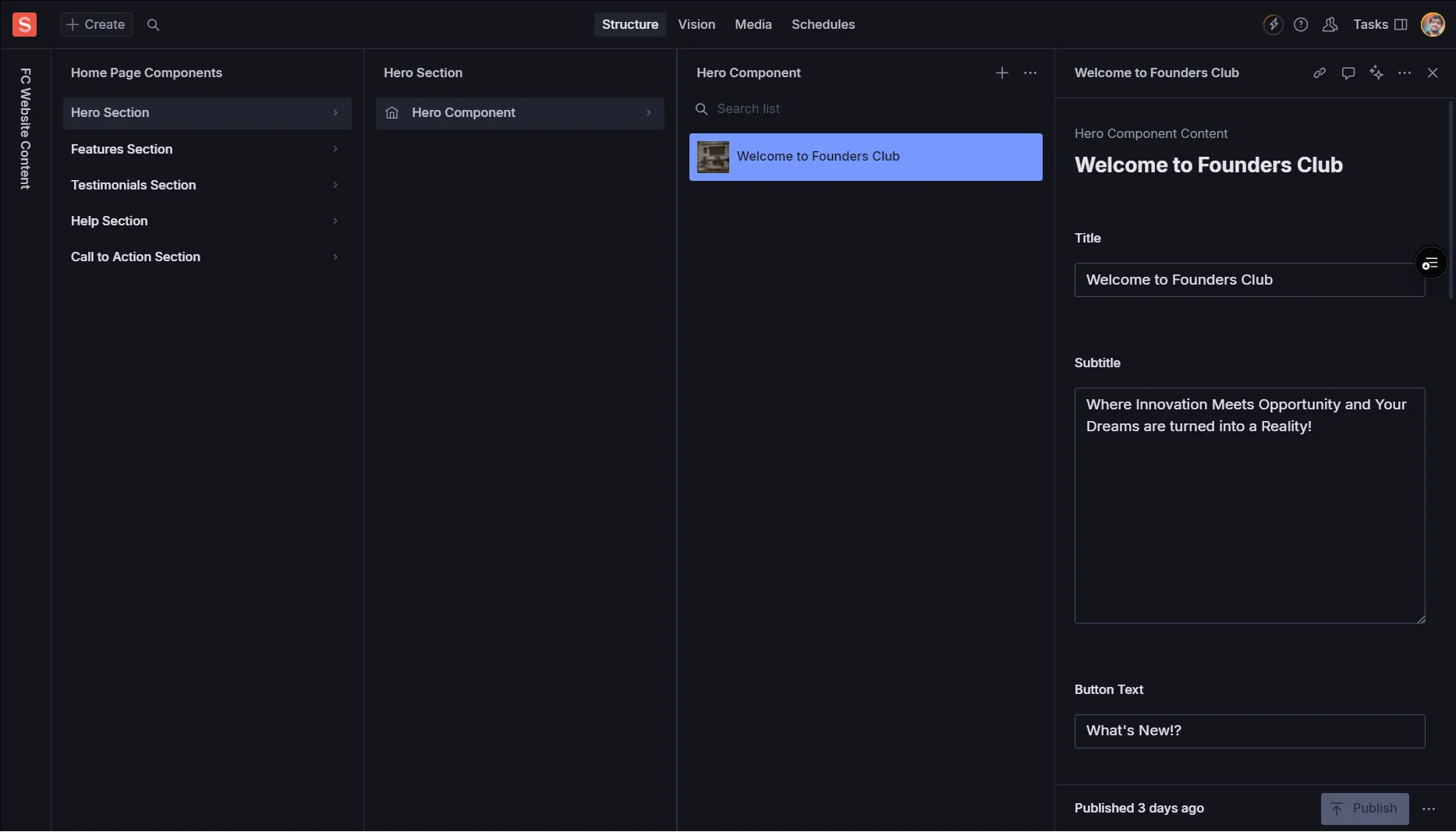
Navigate to View
Choose the relevant page view (e.g., “Home Page”)
Select Page Content
Pick the specific section (e.g., “Hero Section”)
Find Document
Locate the document you want to edit (e.g., “Welcome to Founders Club”)
Text Fields
Image Fields
Other Fields
Save First
Ensure all changed elements are saved (auto save) to preserve your edits within Sanity Studio
Publish Changes
Locate and click the “Publish” button to make changes live on the website
Wait for Deploy
Changes typically take 0 - 15 minutes to appear on the website
Version History
Sanity maintains version history - you can revert to previous versions if needed
Collaboration
Be mindful when multiple users edit the same content to avoid conflicts
Content Guidelines
Follow established style guides, brand guidelines, and content best practices
Testing
Always test the website after publishing to ensure everything works correctly
Access Issues
Contact Tech Lead for login problems or account access
Technical Problems
Reach out to the Technical Team for studio malfunctions
Content Guidelines
Check with the Creative Team Lead for content standards
What should you do immediately after editing content in Sanity?
How long do changes typically take to appear on the live website?
Who should you contact for Sanity Studio access?
What is the heroComponent used for?
What should you check after publishing changes?